
Your First Track in Sunofix
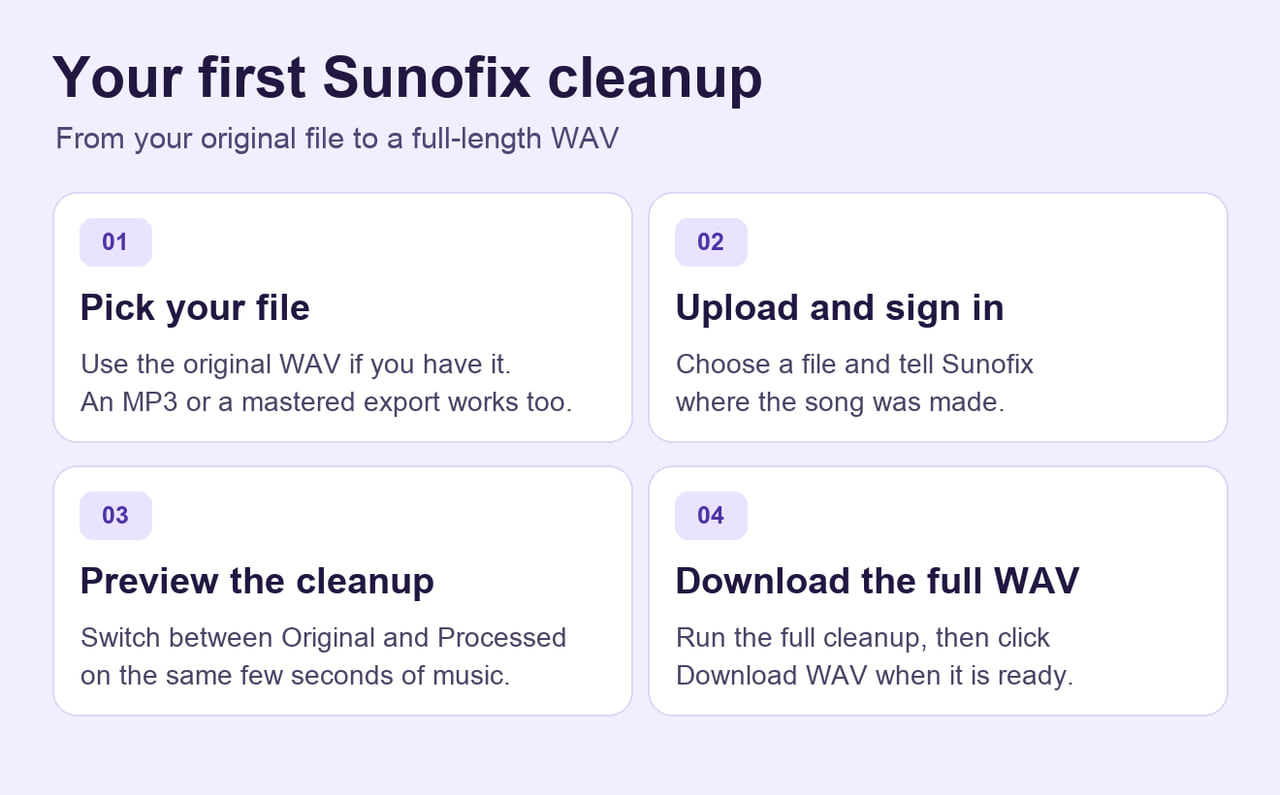
Choose an audio file, preview artifact cleanup in Bright2, compare it with the original, and download the full cleaned WAV.
Clean your first trackStart with one song you know well. Pick a line or chorus where you hear a problem, such as a whistle behind the vocal or a sharp “s” sound. You’ll use that same spot to decide whether the cleanup helped.
1. Choose your audio file
Use the original WAV from Suno or your music generator if you have it. An MP3 works too. If your only copy is an already mastered WAV, upload that file and compare the result with it.
2. Upload the song and sign in
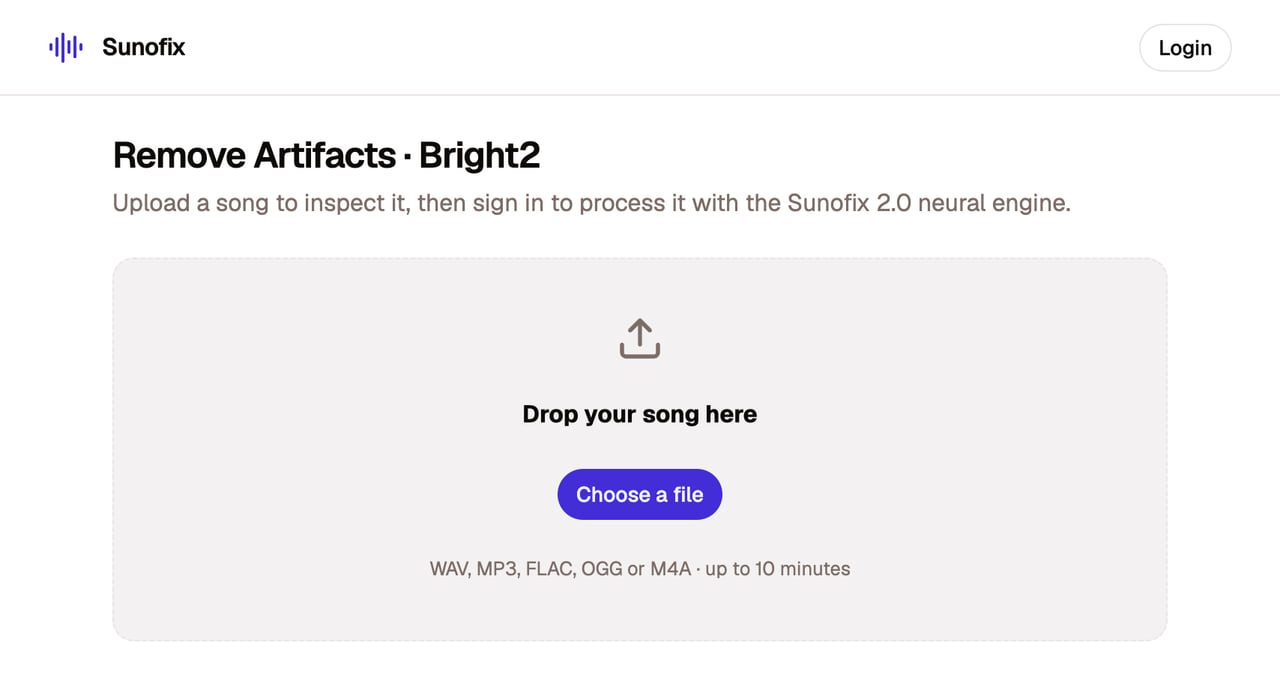
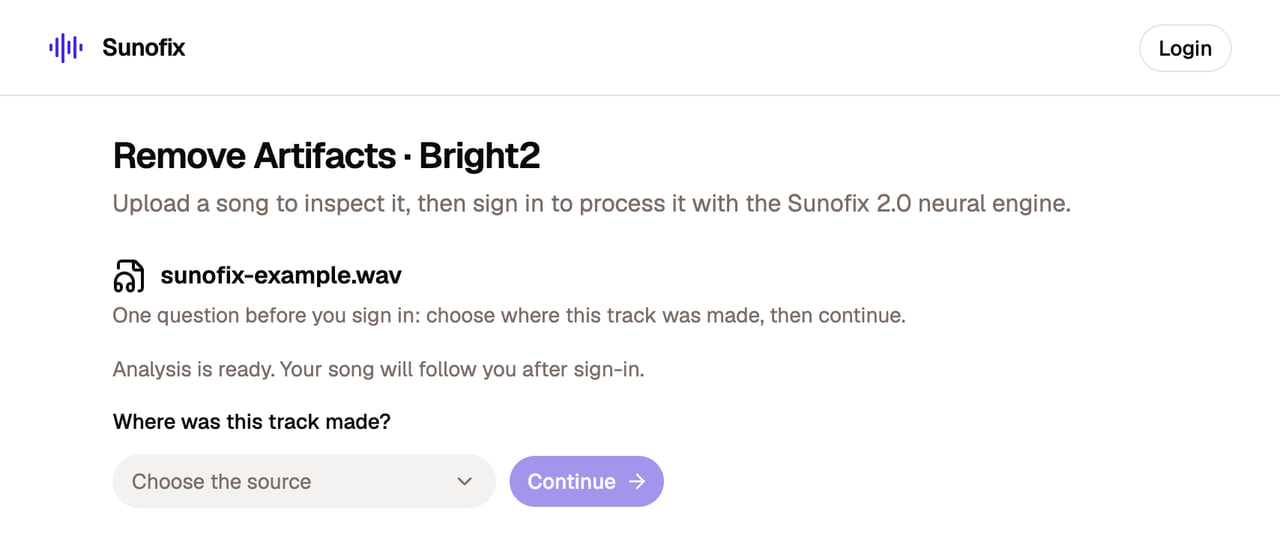
Open Bright2 in Sunofix, click Choose a file, and select your audio. When the app asks Where was this track made?, choose the source and click Continue. If you’re using Sunofix as a guest, click Sign in to continue or Create an account. Your upload follows you into the app.
3. Preview a short section
Under Choose what to clean, start with one fix that matches what you hear. Try Fixed tones for a steady whistle or Sibilance for sharp “s” and “sh” sounds. Click Preview cleanup to hear the Sunofix 2.0 neural engine on a short section.
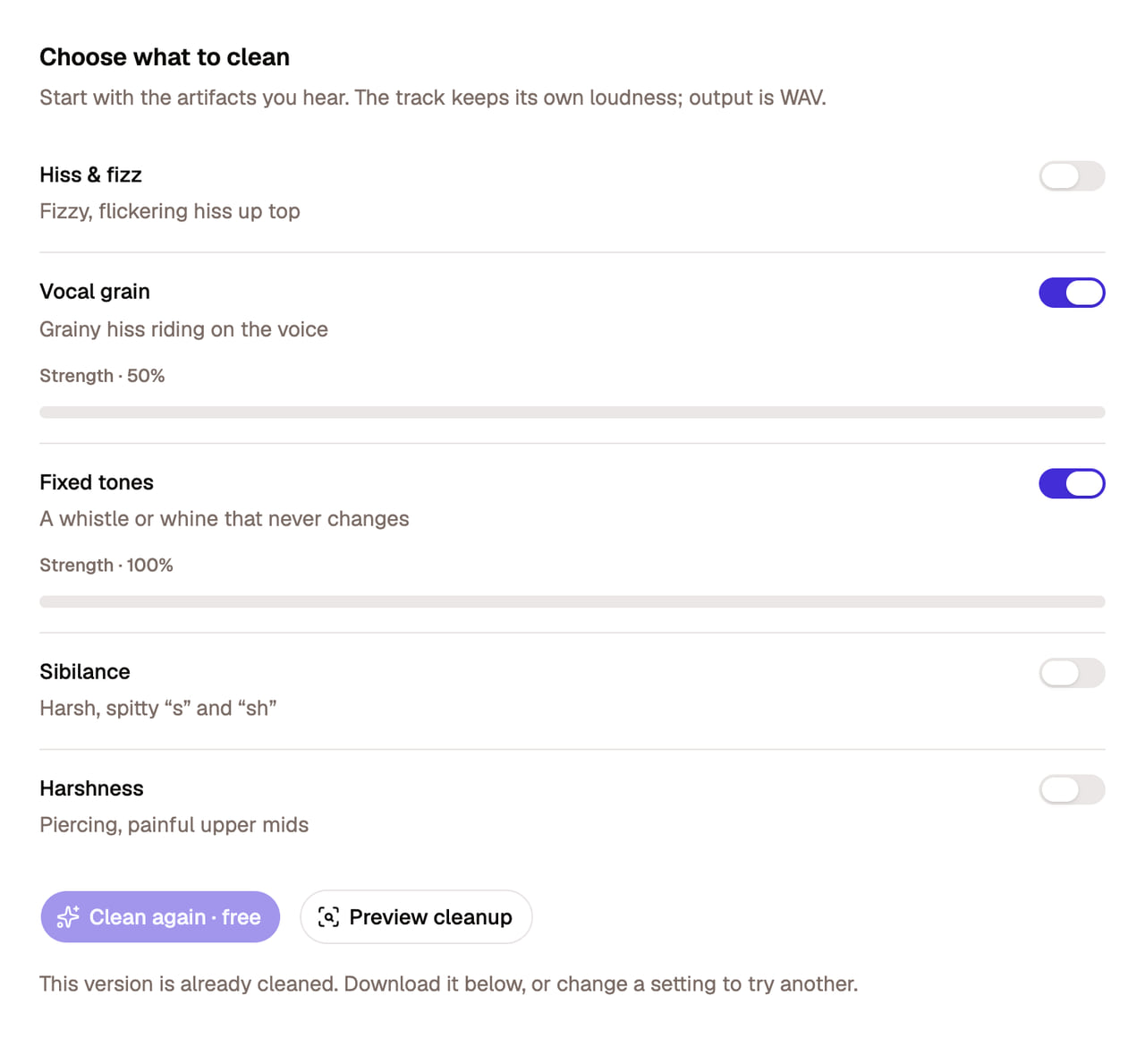
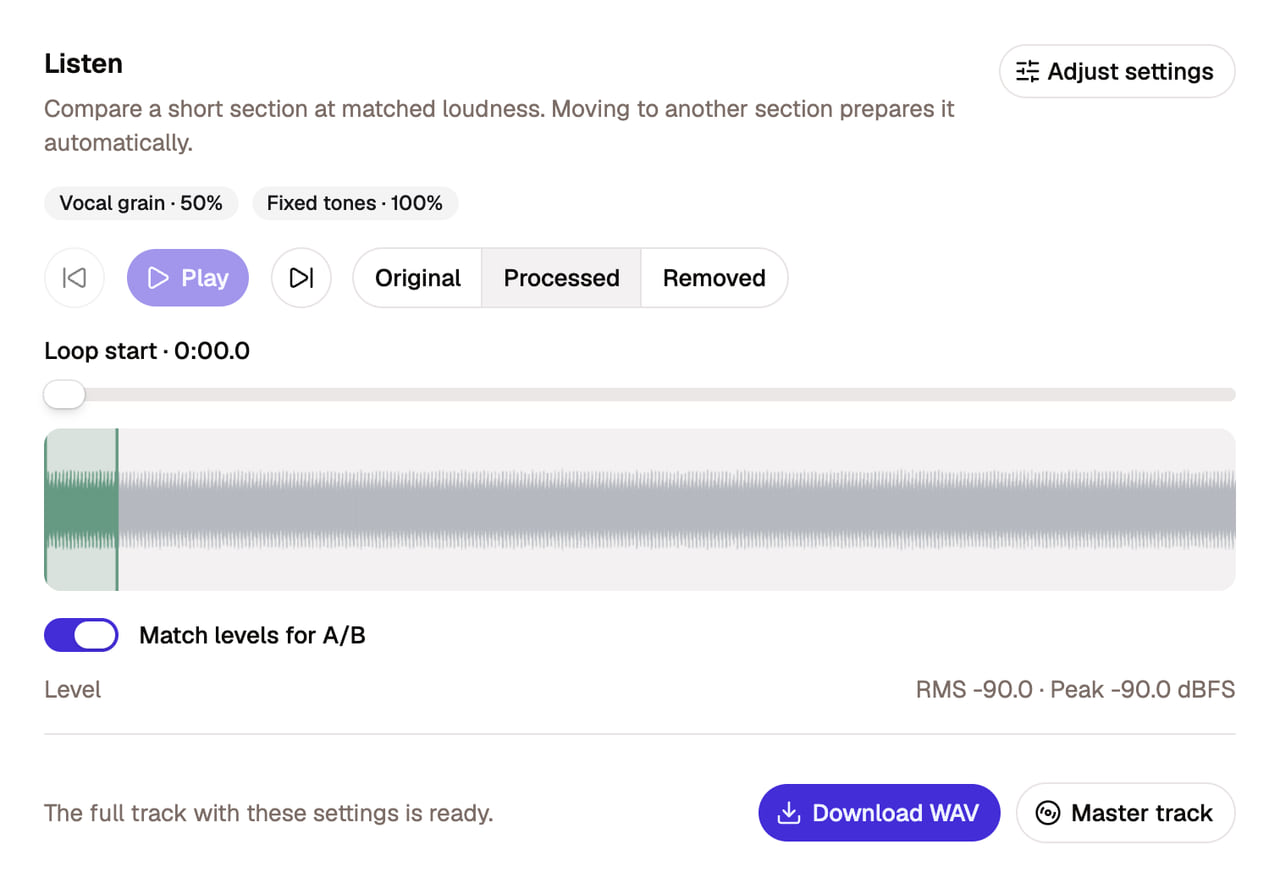
Switch between Original and Processed on the same phrase. Leave Match levels for A/B on so you can compare at similar loudness. If the voice or instruments lose detail you want to keep, click Adjust settings, lower the strength, and preview again.
4. Clean the full track and download the WAV
When you prefer the preview, click Get full track. You can also start from the settings screen with Clean track. Check the credit amount shown on the button before you start.
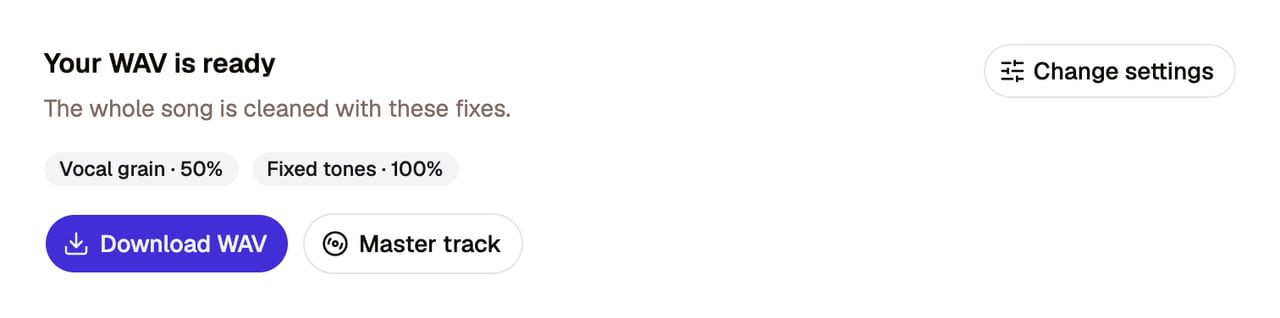
When the full track is ready, click Download WAV. Open the file from your Downloads folder and check the spot you cleaned and the end of the song. If you left the result page, find the saved WAV in My Tracks. If the mix already sounds right, you can keep this WAV. Master track adjusts the final tone and loudness and unlocks after your first credit purchase.
Continue listening