
Where to Download the Full WAV in Sunofix
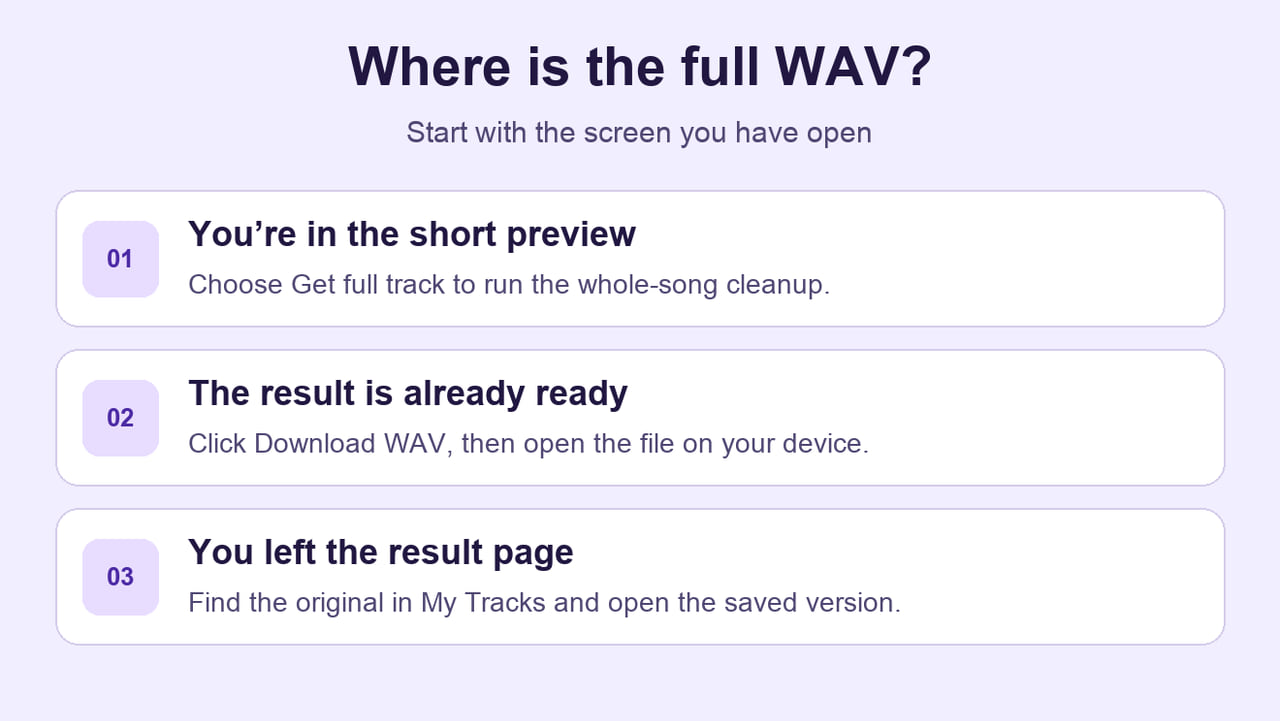
Hear only part of your song? Find the full-track cleanup, download the saved WAV, and check whether the player or the file ended early.
Open your track in SunofixClick Download WAV on the finished cleanup to save the full song. If the screen still shows Get full track, you’re in the short preview. Use that button to start the whole-song cleanup, or reopen your saved result if you already ran one.
1. If you’re only hearing a short section
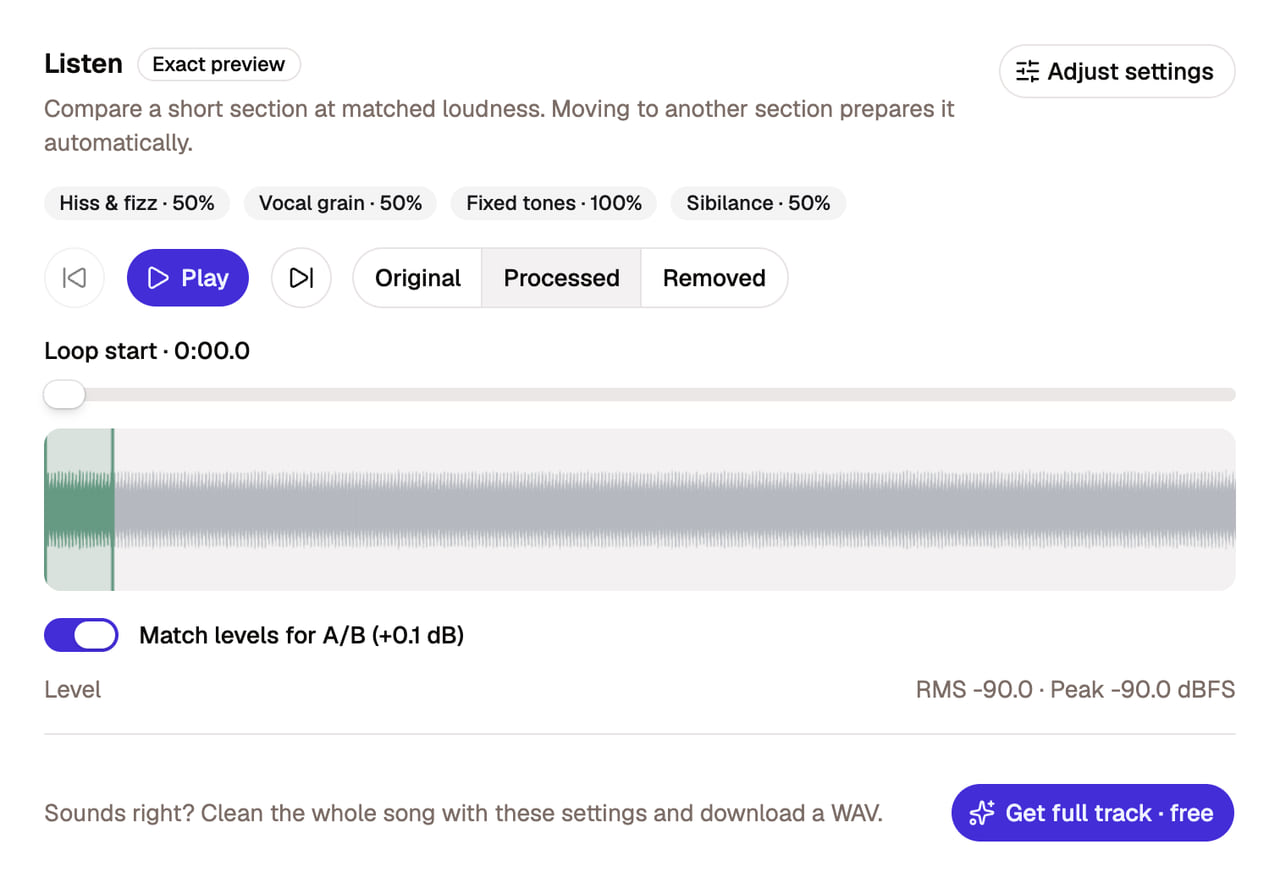
In Bright2, Preview cleanup opens a short loop. You can move Loop start to hear a different part of the song. Original plays the source for that section, Processed plays the cleaned version, and Removed lets you hear the change between them.
When the preview sounds right, click Get full track to clean the entire file. Check the credit amount shown on the button. If you just bought credits and still see this preview, check My Tracks for an existing cleanup before starting one.
2. Open the finished result and download it
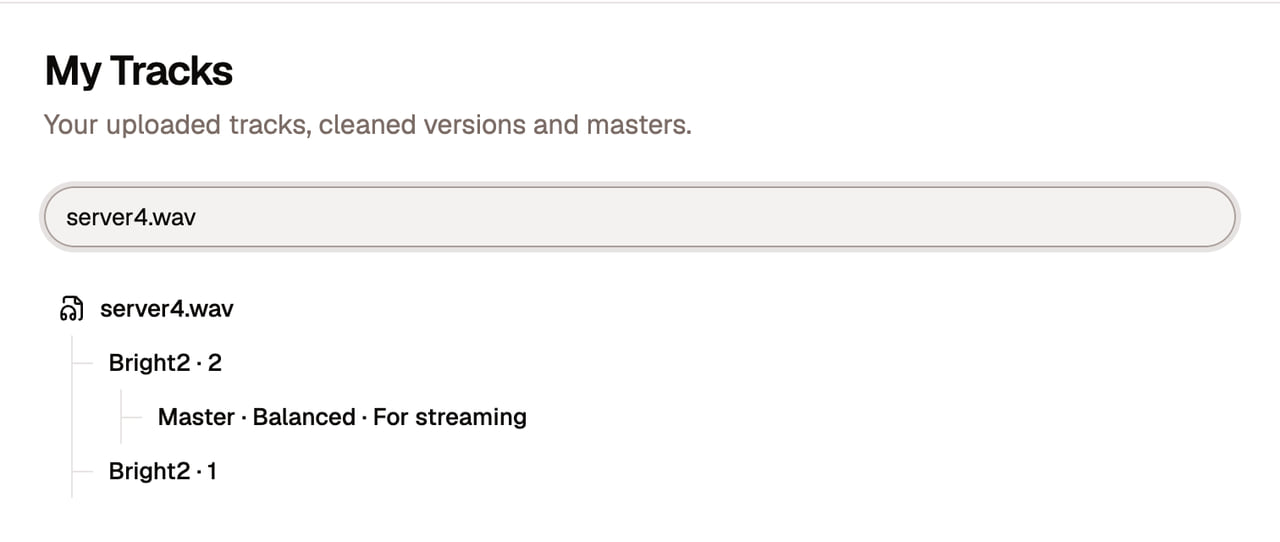
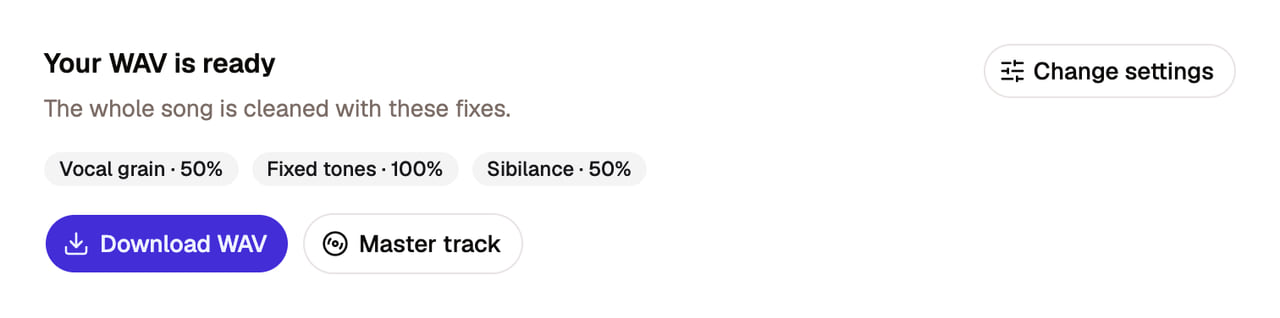
When Bright2 shows Your WAV is ready or says the full track is ready, click Download WAV and wait for the browser to finish saving the file. If you left the page, open My Tracks in the same account. Find the original by filename, then open the saved Bright2 or Deep version underneath it. For a finished Deep result, use its Download WAV button.
3. Check the file if playback ends early
Open your browser’s downloads list and locate the finished WAV. Play the saved file on your device, compare its duration with the original you uploaded, and skip to the final section. If the local WAV plays to the end, you have the full file even if the web player only played a short section.
If the WAV itself ends early or goes silent where the original keeps playing, use Support in the app or email [email protected]. Include the result page link, both durations and the timestamp where the problem starts.
Continue listening