
Track Stuck in Sunofix? Check Upload, Analysis, or Processing
Find out where your track stopped in Sunofix, reopen the saved upload or cleanup, and know when to contact support.
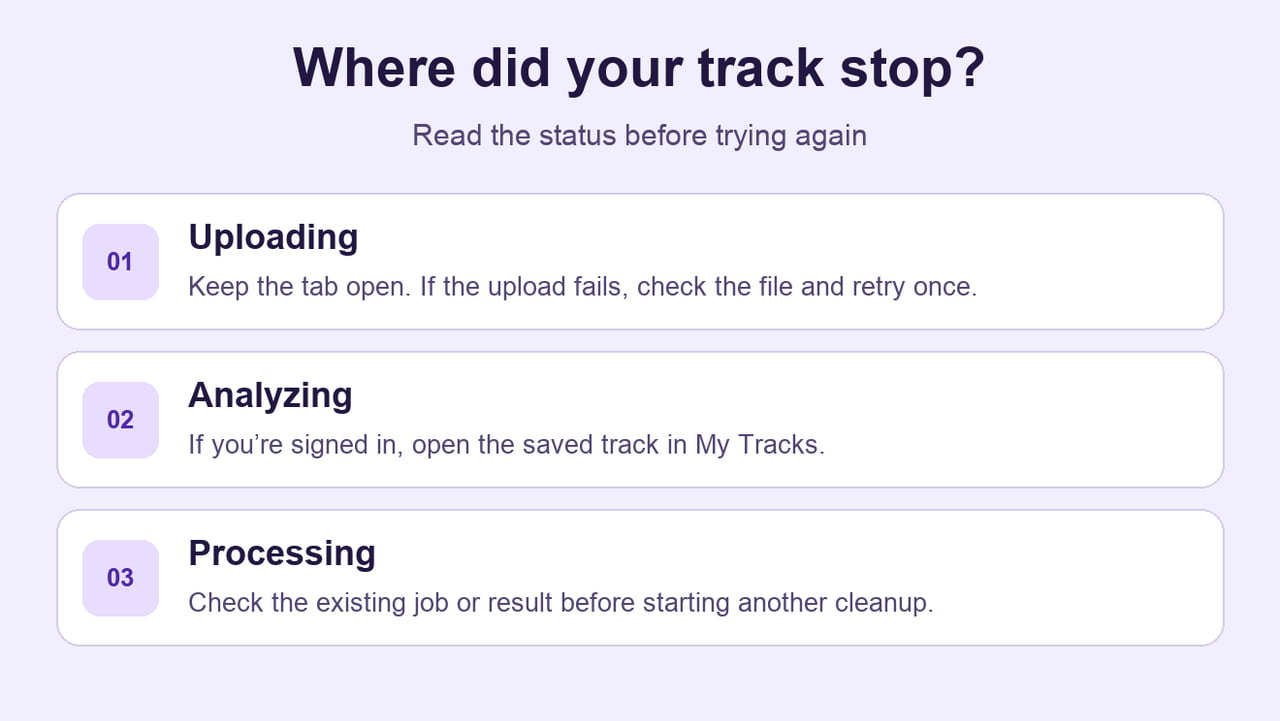
Open SunofixLook at the status beside your track first. If it still shows a percentage next to Uploading, the file is being sent or saved. If it says Analyzing, Sunofix already has the file. If you clicked Clean track or Process, check the cleanup you already started before trying again.
1. Uploading stays at the same percentage
Keep the tab open while the upload is active. If the app reports an upload failure, open the audio file on your device and check that it plays. If it lives in cloud storage, save a local copy first. Try the upload once more over a stable connection. If the app says it cannot read the format, try exporting a fresh WAV or MP3 from your audio editor and upload that file.
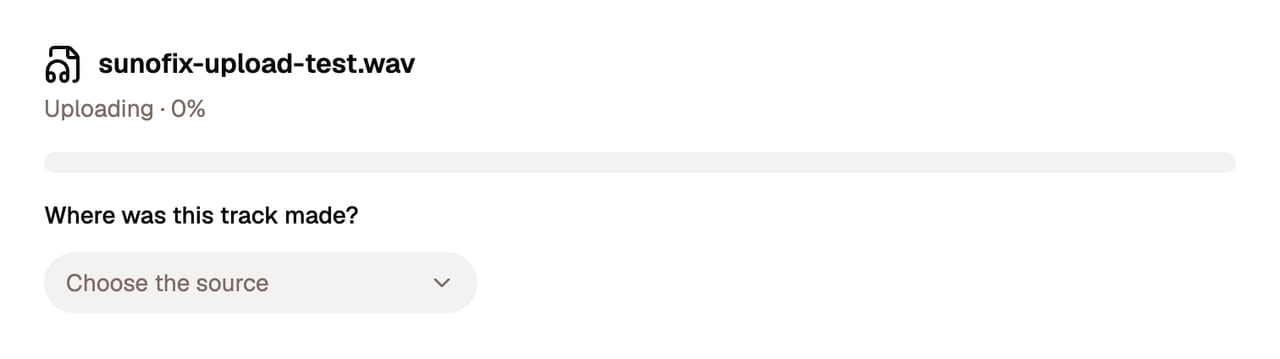
If you were signed in, check My Tracks before sending the same file again. If the original appears, open it there.
2. Analysis is taking a long time
If you see Analyzing your song…, wait on that screen for the analysis. If you’re signed in and it still looks stuck, open the saved original in My Tracks to check its current state. If you’re using Sunofix as a guest, return to the same tab.
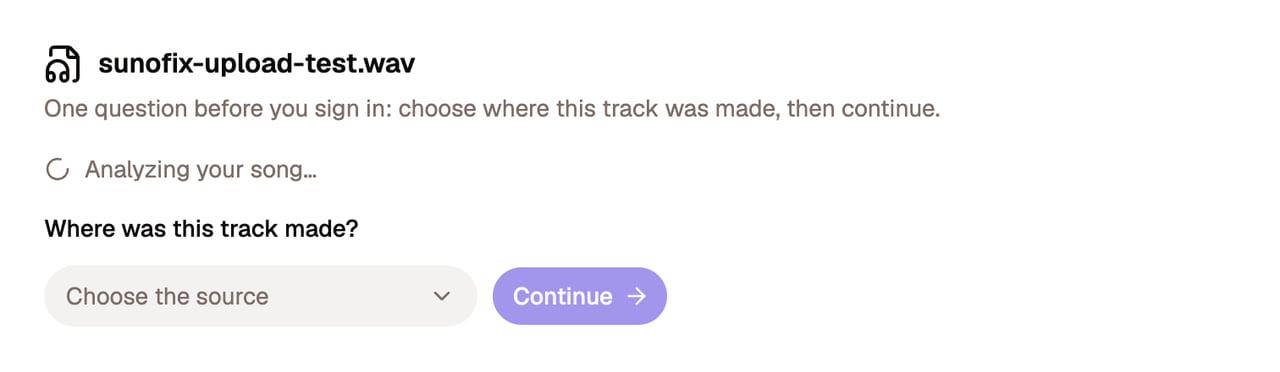
If the screen says Analysis is ready, continue with the prompt on screen. If Bright2 asks Where was this track made?, pick the source and click Continue. Sign in if asked, then choose your cleanup settings.
3. Processing has started and the result is missing
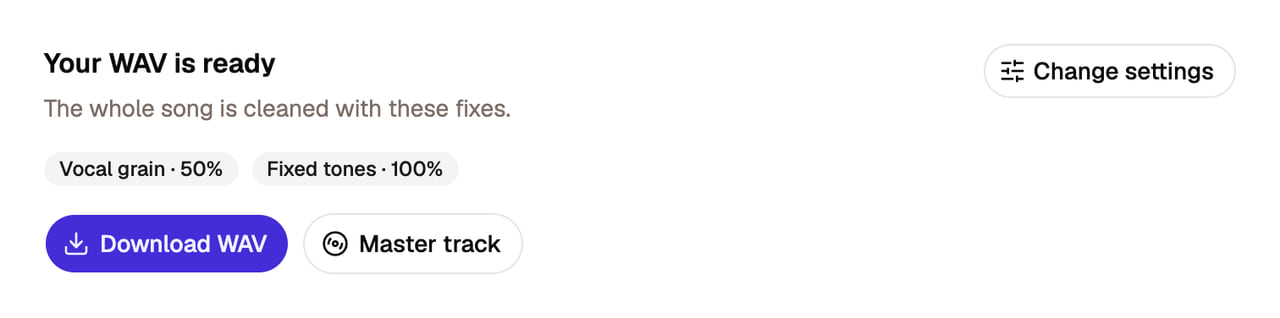
Find the original in My Tracks and look underneath it for the Bright2 or Deep version. If you see a Find a track field, search by the filename. Queued means the cleanup is waiting to start. Processing means it’s running. Give the existing cleanup time to finish, then open the ready version and click Download WAV.
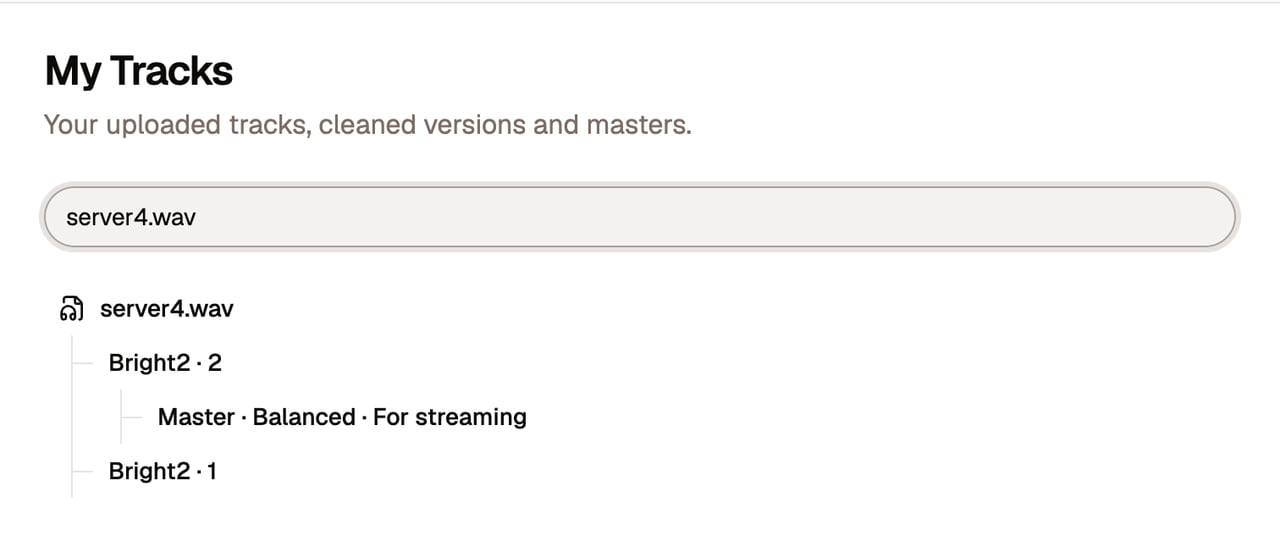
If Deep offers Check progress, use it to check the existing run. If Bright2 shows Previous request unconfirmed, click Retry saved request to recover that request. If the cleanup reports a failure, check your result and credit history before starting a new one.
If it still looks stuck
Use Support in the app or email [email protected]. Include the track name, its format, the status or exact error, and roughly when it happened with your time zone. Mention your browser and device. If processing started, include the result page link and say whether a credit was used.
Continue listening