
Best AI Music Cleanup Tools: Artifacts, Noise, and Mastering
Choose AI music cleanup tools by defect: compare Sunofix, spectral repair, dynamic EQ, stem separation, and mastering without overprocessing your song.
Compare cleanup with your original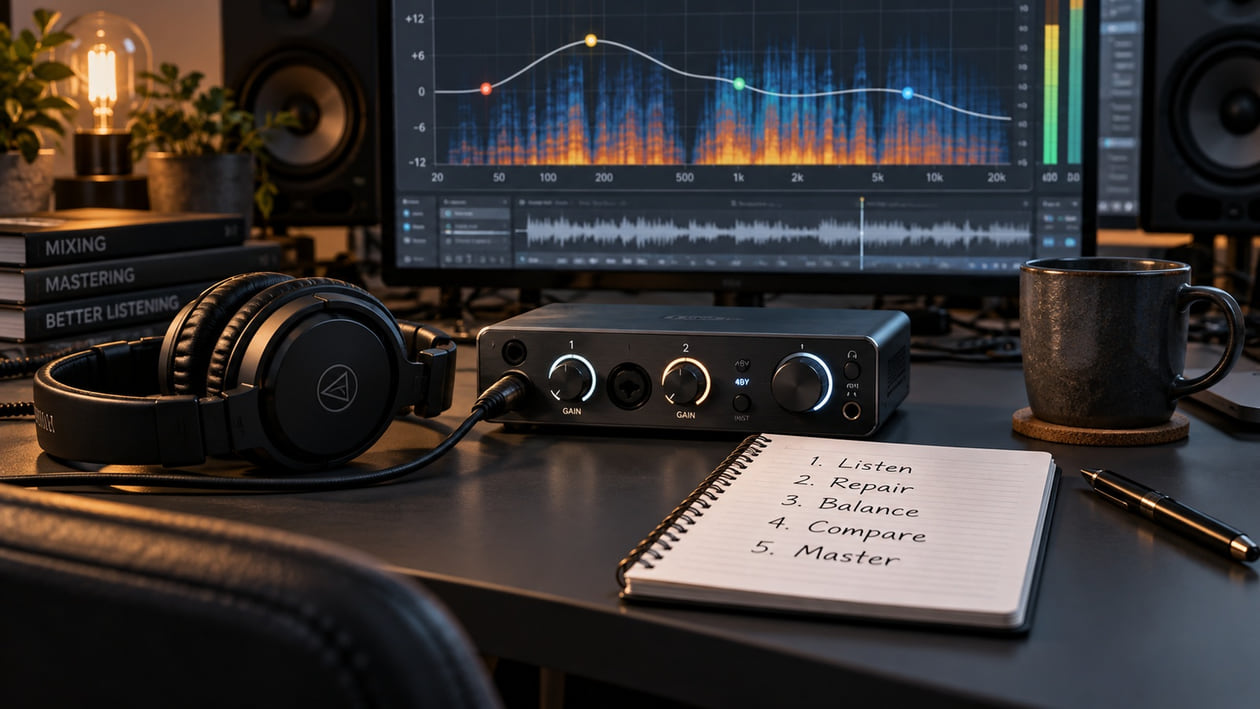
No single audio tool fixes every AI music defect. For metallic shimmer across a stereo WAV or MP3, test a full-mix artifact cleaner such as Sunofix. For steady hiss or an isolated click, choose noise reduction or spectral repair. For sharp consonants, try a de-esser; for a part that is too loud, consider stems. Leave final mastering until the source sounds right at matched loudness.
I built Sunofix for the stage where you want to keep the song and improve its exported sound. That makes this a founder’s workflow guide, not an independent listening-test ranking. The useful question is which tool addresses your audible problem with the least damage to the performance.
Why podcast denoisers and mastering chains fail on AI songs
A search for the best AI music cleaner can put speech denoisers, stem splitters, and mastering services in the same list. They solve different problems. A speech-focused processor tries to preserve a voice while rejecting background sound. In a song, the background may be the guitar, cymbal decay, or reverb you want to keep. Treat tools such as Cleanvoice or a Voice Isolator as a separate speech workflow; do not assume their defaults will preserve a stereo arrangement.
First loop a short passage where the problem is obvious, then listen to a quieter passage as well. Is it a constant bed of hiss, a single tick, a piercing consonant, a moving metallic layer, or an instrument masking the voice? The spectrogram generator can help locate a persistent band or sudden burst. A bright patch alone is not proof of a defect: use it to locate a listening test.
| Tool category | Representative tools | Primary defect solved | What it cannot fix | When to use in the chain |
|---|---|---|---|---|
| Full-mix artifact cleanup | Sunofix AI 2 | Distracting metallic or glassy texture through an export | Wrong lyrics, melody, or instrument balance | Test before final mastering |
| Spectral repair and noise reduction | iZotope RX, Adobe Audition, Audacity | Local clicks or steady hiss, using the appropriate module | Every moving musical artifact with one noise print | Repair specific problems before broad processing |
| Dynamic EQ and de-essing | FabFilter Pro-Q, Pro-DS, TDR Nova | Ringing bands and sharp consonants | Missing musical detail or a wrong performance | Apply only where the symptom occurs |
| Stem separation | Suno Studio 2.0, ElevenLabs Stems, Demucs | Part-level access for balance and selective processing | Guaranteed recovery of original source tracks | When one part needs a separate decision |
| Mastering and loudness control | A mastering limiter or online mastering service | Final level, peaks, and tonal presentation | Reconstructing a damaged source | After repair and balance decisions |
Keep an untouched original. Change one thing at a time and compare at the same perceived volume. I use that distinction throughout this guide: a louder version may feel more exciting without being cleaner.
Category 1 — Full-mix AI artifact cleanup (Sunofix)
If a thin metallic layer follows the vocal, cymbals, and reverb across the stereo file, repeated broad treble cuts may take away useful detail. A manual route is to identify the most irritating band, apply a small reduction, and bypass it often. Stop if the vocal loses presence or the drums lose their attack while the distracting texture remains.
Sunofix offers a different test for an exported WAV or MP3 from generators such as Suno, Udio, Treblo, or ElevenLabs. Sunofix AI 2 targets metallic ringing, glassy highs, and harsh digital texture in the finished audio. Compare the cleaned result with the original, especially on the dense chorus and the quiet ending. The goal is to preserve the song while reducing the distraction, rather than rewrite its melody, lyrics, or arrangement.
One pass may be enough if the balance already works and the same unwanted texture runs through the mix. It cannot guarantee removal of every artifact, reconstruct a missing performance, or lower only the bass inside a stereo file. If the issue is one click, use local repair; if it is a buried vocal, investigate part balance. The Suno audio-quality guide gives a broader export-to-comparison workflow.
Category 2 — Spectral repair and broadband noise reduction
A steady hiss during an otherwise empty pause is a different target from shimmer that changes with the singer. Audacity Noise Reduction learns a profile from noise-only audio and applies reduction to the selection. Its manual explicitly separates this job from individual clicks. Noise Reduction does not repair individual clicks: use a dedicated click-removal or repair process for those instead.
Audition offers noise-print reduction alongside other restoration effects. RX provides a collection of repair tools, including workflows for localized spectral problems. Choose the module for the defect; not every RX or Audition operation requires a noise print. For a single pop, select a small region and preview the repair rather than denoising the entire song. Tool availability varies by edition, so check the module you need before buying.
A changing musical artifact may share frequencies with the vocal or cymbals. A noise-only selection does not necessarily describe it. Start with modest reduction, listen to what disappears, and check sustained notes and reverb tails. If the treatment produces watery movement or dulls the whole mix, undo it. A cleaner-looking spectrogram is not a reason to keep a worse-sounding file.
Category 3 — Surgical de-essing and dynamic resonance control in a DAW
A de-esser reduces sharp consonants such as an overbearing “s.” A dynamic equalizer lowers a chosen frequency region when it becomes excessive, rather than cutting that region throughout the song. FabFilter Pro-DS documents vocal sibilance detection and an Allround mode for broader material. Pro-Q and TDR Nova belong to the dynamic-EQ route: useful when you can identify a ringing band rather than a constant broadband veil.
In your DAW, the audio editor where tracks and effects run, loop the offending phrase and adjust the threshold until reduction follows the problem. Bypass the effect and listen to consonant clarity, not just softness. Stop when the voice becomes lispy or cymbals begin to duck with the singer. On a stereo mix, several instruments share the same frequencies, so even a narrow correction can affect more than the intended part.
Use the vocal texture guide when the issue is a robotic tone rather than an isolated sharp consonant. De-essing and artifact cleanup can complement one another, but neither guarantees a natural vocal when the underlying performance is damaged. Keep the smallest chain that produces a clear improvement.
Category 4 — Stem separation and part-level rebalancing
When the bass overwhelms the vocal or one cymbal pattern dominates, you need control of parts. Suno Studio 2.0 documents splitting an audio clip into stems, including Auto Split, Split from Mix, and Advanced Split options. Follow the current account controls and plan requirements. Separate parts can help you lower or process one element without imposing the same change on everything else.
ElevenLabs documents a music stem-separation endpoint. Demucs is an open-source separation project; its original Meta repository is archived, which matters if you want a maintained local setup. Neither an API feature nor an archived code repository guarantees a convenient consumer workflow. Check your access, file support, and installation needs before committing to a tool.
Separation estimates parts from the mix. Listen for leakage, altered cymbal tails, or a phasey vocal, then recombine the stems and compare against the original before processing. Follow the Suno stem export and cleanup guide for the export decision. If you only need a small reduction in full-mix harshness, separation may add complexity without helping. Keep the stereo version as your reference. For the order of operations, see cleanup before or after stem separation.
Category 5 — Final mastering and loudness normalization
Mastering sets the final presentation after you have decided that the source and balance work. Compression and limiting can make existing quiet grit more noticeable as they change dynamics and raise average level. This does not mean every mastering service damages AI music. Loudness normalization alone is a gain adjustment; it does not selectively amplify noise relative to the rest of the song.
LUFS is a measure of perceived program loudness, not a cleanup score. Do not push toward a number while ignoring splashy cymbals or a strained vocal. Make the repair decision at matched volume first, then judge the final level against the needs of your destination. Avoid several rounds of limiting and lossy re-encoding while you compare tools.
Use this short order of decisions:
- Keep the best available export and an untouched backup.
- Name the audible defect and choose one relevant tool category.
- Repair locally when the problem is local; test full-mix cleanup when it is widespread.
- Separate stems only when a part needs independent control.
- Compare the same passages at matched loudness and reject lost musical detail.
- Master the version you actually prefer, then check the ending and export again.
If the metallic layer is the remaining obstacle, test your export in Sunofix and compare it with the original. Keep the version that preserves the vocal expression, drum attack, and space around the song.
Continue listening
Related reading
FAQ
Best AI Music Cleanup Tools: Artifacts, Noise, and Mastering FAQ
What is the difference between a voice denoiser and an AI music artifact cleaner?
A voice denoiser prioritizes speech against background sound. A music artifact cleaner targets distracting texture in a musical export. Speech isolation can remove musical material, so test it on a copy rather than treating the full mix as background noise.
Can Audacity remove metallic shimmer from a Suno or Udio song?
Audacity can help with steady hiss, clicks using separate repair tools, or a narrow ringing band. Noise Reduction is not a reliable universal fix for shimmer that moves with vocals and cymbals; aggressive settings can damage the music.
When should I use iZotope RX instead of an automated full-mix cleaner?
Use RX when you need to select and repair a specific click, noise burst, or spectral region. Use a full-mix cleaner when the distracting texture runs through the stereo export, then compare at matched loudness before keeping the result.
Do I need to split stems to clean up an AI-generated track?
No. Try stereo cleanup when the arrangement and balance already work. Separate stems when one part needs its own level or processing, and check the recombined mix for leakage and separation artifacts.
Why does online mastering make AI music artifacts sound louder?
Some mastering chains raise quiet detail through compression and limiting, which can expose existing grit. Loudness normalization alone does not selectively amplify artifacts. Compare at matched loudness and repair the source before pushing the final level.