
Stable Audio Open Artifacts: Clean Diffusion Grain and Restore Drum Attack
A listening-first guide to checking Stable Audio Open 44.1kHz WAV renders for high-frequency grain, stereo phase loss, softened drum attacks, and low-end instability before mastering.
Clean my Stable Audio Open render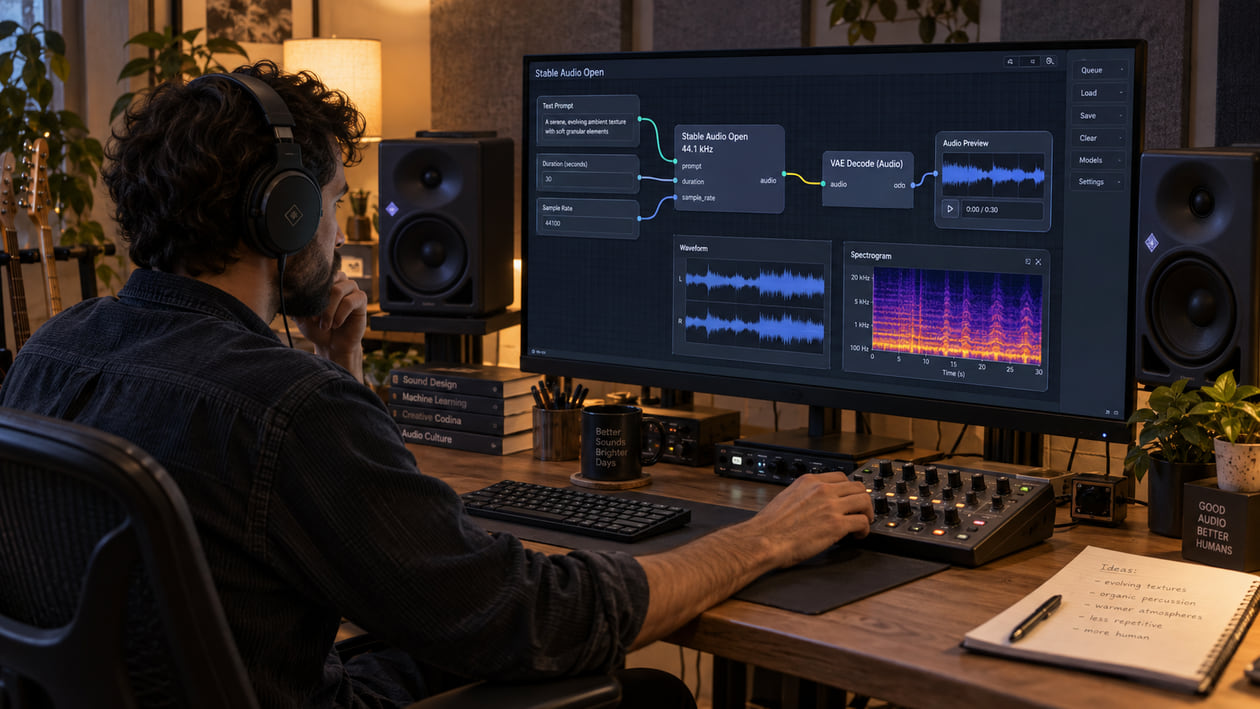
A Stable Audio Open render can sound exciting on the first play and tiring on the fifth. The drum loop may have the right rhythm but a rounded first hit. A bright texture may carry a fine sandy layer above the useful harmonics. A wide ambience may become hollow or lose its center when you switch to mono.
Do not reach for a mastering limiter yet. Preserve the original generated WAV, mark the exact moments that bother you, and compare stereo with mono at the same loudness. Treat high-frequency grain, phase loss, and weak drum attack as separate symptoms. A single broad “make it better” chain can hide one problem while damaging the part that already works.
Checked September 21, 2026. Stable Audio Open 1.0 is not the same product as the current commercial Stable Audio service or the newer Stable Audio 3.0 family. This guide is about the open-weight stabilityai/stable-audio-open-1.0 model and files produced from it or compatible local workflows.
The short answer: clean the render before mastering
Stable Audio Open generates up to 47 seconds of stereo audio at 44.1kHz. That sample rate can preserve bright detail, but it does not guarantee that every bright sound is useful musical information. If a hiss-like texture follows cymbals, reverb, or a sustained synth, inspect it before compression and limiting make it more obvious.
Start with three checks: listen to the quiet tail, audition the strongest drum hit, and fold the file to mono. If the grain is continuous, a restrained full-mix cleanup may help. If only one attack is damaged, repair that event locally. If the center vanishes in mono, solve the phase or arrangement problem before touching the top end.
Cleanup and mastering are different stages. Artifact cleanup removes an unwanted source texture; mastering shapes a mix that is already healthy enough to finish. Keep those decisions separate so you can tell which action changed the sound.
Diagnose the Stable Audio Open render you actually have
First, loop the same five to ten seconds instead of judging the whole render at once. Use the untouched export and turn off normalization, enhancers, limiters, and spatial wideners in your player or DAW.
Listen for four patterns:
- Fine high-frequency grain makes cymbals, air, and reverb tails sound like spray or sand rather than a smooth decay.
- A softened drum attack leaves the kick with weight but no front edge, or gives the snare a papery push instead of a defined crack.
- Stereo phase loss lets a pad feel large in stereo, then turns it thin, hollow, or strangely distant in mono.
- Low-end instability makes the sub wander, rumble below the musical bass, or weaken when left and right are combined.
This does not prove that Stable Audio Open caused it. Resampling, peak normalization, a third-party node, a crossfade, lossy delivery, or later processing can create similar symptoms. Use the audible-artifact guide to name the sound before choosing a tool.
I usually check the busiest hit and the quietest tail first. The hit shows whether the music still has shape; the tail makes low-level grit easier to hear without the arrangement masking it.
Source preflight: model, output, licensing, and stems
The official model card describes Stable Audio Open 1.0 as a latent-audio system with an autoencoder, T5 text conditioning, and a transformer-based diffusion (DiT) model. The autoencoder compresses the waveform into a smaller representation; in listening terms, reconstruction is one place where fine texture and attacks deserve a careful check. That architecture is context, not proof that any particular click, grain pattern, or phase problem came from the model.
The official example generates stereo audio, peak-normalizes it, clamps it, converts it to 16-bit integer samples, and saves output.wav at the model’s sample rate. It does not document MP3, FLAC, or separated-stem output in that default workflow. Do not label prompt layers as stems unless your own workflow truly rendered separate synchronized audio files.
Preserve the original generated WAV. Do not convert an MP3 back to WAV and call it lossless, and do not add a 24-bit label to a 16-bit source expecting new detail. If a third-party ComfyUI node or hosted interface produced your file, inspect its sample rate, bit depth, channel count, normalization, and any post-processing separately.
Licensing also belongs in preflight. Stability AI currently lists Stable Audio Open 1.0 among its Core Models under the Community License. Its license guidance says commercial use is available under that license for individuals and organizations below $1 million in annual revenue, while larger commercial users need to review Enterprise terms. Model access does not clear third-party samples, prompts, trademarks, performances, or other rights. Recheck the current terms for your exact model and use case before release.
Stable Audio Open 44.1kHz High-Frequency Grain Distribution
A spectrogram can help you find where to listen, but it cannot declare a file “AI-generated” or identify the model that made it. Read this table as a qualitative diagnostic map, not a measured benchmark for Stable Audio Open.
| Spectral area | What a suspicious pattern can look or sound like | Next check |
|---|---|---|
| Below 30 Hz | A faint continuous band or wandering energy that adds movement but no useful bass note | High-pass only if removing it does not thin the kick or bass |
| 2–8 kHz | Short vertical bursts around attacks, or narrow bright lines that coincide with painful hits | Loop the hit and test a narrow dynamic EQ band |
| 14–22.05 kHz | Dense speckles or a persistent mist above the musical harmonics; audibility depends on the source and listener | Compare the tail at normal level, then low-pass briefly as a diagnostic only |
| Across both channels | Similar energy with different timing or polarity between left and right | Switch to mono and watch for disappearing center information |
The 14 kHz boundary is a practical listening window, not a claim that every Stable Audio Open render has grain there. A clean shaker or noisy field recording may naturally fill that range. Listen for whether that energy follows the intended source or sits over unrelated sounds as a static layer.
Check stereo phase before cleanup
Compare stereo and mono before EQ. If the low end drops sharply or a central drum moves backward, inspect correlation, panning, and any widening node in the local workflow. Phase describes timing and polarity relationships between channels; the audible effect is that sounds reinforce or cancel when the channels are combined.
Do not “fix” a mono loss by boosting the missing frequency in stereo. That can make the stereo version louder while the cancellation remains. Try reducing a widener, aligning a duplicated layer, or returning to an earlier render. If the problem is baked into a full mix and important elements disappear, regeneration may be safer than aggressive mid-side processing.
Use headphones for small spatial differences, then confirm on speakers or a mono button. A correction is only useful when the center becomes steadier without collapsing the ambience you wanted.
Restrained manual cleanup in your DAW
Work from the smallest reliable observation:
- Keep an untouched reference. Duplicate the file and place markers at the grainy tail, strongest drum hit, and mono problem.
- Remove only inaudible sub-rumble. Try a gentle high-pass below roughly 25–30 Hz, then bypass it. Keep it off if the kick loses weight.
- Use dynamic EQ only when the harshness appears. A dynamic band turns down a narrow area only on painful hits or bright tails. If a static cut makes the whole render dull, it is too broad.
- Protect the first hit before adding a transient shaper. Zoom in for a clipped start, accidental fade, or edit boundary. A transient shaper cannot recreate samples that are missing; too much attack can turn grain into clicks.
- Repair isolated boundaries locally. Use a short crossfade only where there is a real discontinuity. Do not crossfade every drum hit.
- Use level-matched before-and-after playback. Lower the louder version until switching no longer creates an obvious level jump. Louder often sounds clearer even when the artifact remains.
If harshness is the main problem, follow the restrained high-frequency workflow rather than stacking broad cuts. Stop when the tail feels cleaner but cymbals and percussion still have shape.
The Sunofix cleanup path for Stable Audio Open audio
I built Sunofix for the stage where the musical idea already works but the exported full mix still carries an artificial edge. Upload a lawful WAV or MP3, keep your original, and compare the cleaned result with the source at matched loudness. Focus on the same marked tail, drum hit, and mono check you used during diagnosis.
Sunofix is a full-mix cleanup path, not a replacement for arranging or stem mixing. It can reduce a distributed synthetic texture when a series of manual cuts would remove too much useful sound. It should not be used to hide a weak composition or to process a clean render merely because it came from an AI model.
Choose the cleaned version only if the grain distracts you less and the first drum hit, stereo center, bass weight, melody, and emotional movement remain intact. If the result sounds darker, flatter, or less stable, keep the original or return to a smaller manual repair. Then decide whether the track actually needs mastering.
Technical and legal boundaries
Post-export cleanup cannot restore samples already lost to clipping or lossy encoding. It cannot reconstruct a missing transient, separate a full mix into true original stems, rewrite a prompt, repair melody or arrangement, or correct an unsatisfying performance. Some problems need a new local render or a different generation setup.
Cleanup also does not grant legal clearance or guarantee distributor approval. The Community License, acceptable-use rules, and Core Models list can change, and your own inputs may carry separate obligations. Keep a record of the model version, license check, source files, and processing steps, then obtain qualified legal advice when the release stakes justify it.
Stable Audio Open 1.0 is also limited by its stated purpose and training. Its official model card says it performs better on sound effects and field recordings than music, does not generate realistic vocals, and was trained with English descriptions. Those limits are reasons to evaluate the actual render, not reasons to assume every defect has the same cause.
Stable Audio Open audio release checklist
- Confirm that the source is Stable Audio Open 1.0 rather than the commercial Stable Audio app or Stable Audio 3.0.
- Preserve the original generated WAV and note the actual sample rate, bit depth, and channel count.
- Mark the quiet tail, strongest drum attack, and any edit boundary.
- Check high-frequency grain at normal listening level before using a low-pass filter as a diagnostic.
- Compare stereo and mono; do not EQ around unresolved phase cancellation.
- Remove sub-rumble only when the kick and bass retain their intended weight.
- Repair one damaged boundary locally before applying full-track processing.
- Use restrained dynamic EQ only on repeatable harshness.
- Compare Sunofix cleanup with the original at matched loudness.
- Check that drum attack, stereo center, bass, melody, arrangement, and emotion remain intact.
- Recheck the current license and rights in every input before commercial use.
- Master only after the source problems are controlled, or stop when the render already works.
The goal is not to sterilize the file. It is to remove the layer that keeps pulling your attention away from the sound you chose to keep.
Continue listening
Related reading
FAQ
Stable Audio Open Artifacts: Clean Diffusion Grain and Restore Drum Attack FAQ
What causes digital artifacts in a Stable Audio Open render?
A grainy tail, softened attack, or unstable stereo image can enter during generation, autoencoder reconstruction, normalization, resampling, editing, or later processing. The official sources describe the model architecture and limitations but do not publish a universal artifact profile, so compare the untouched WAV before assigning a cause.
What format does the official Stable Audio Open workflow generate?
The official model-card example saves output.wav from stereo 44.1kHz audio and converts the tensor to 16-bit integer samples before saving. It does not document MP3, FLAC, or separated-stem output in that workflow. Third-party interfaces can behave differently.
Can Sunofix clean Stable Audio Open audio?
Sunofix can reduce unwanted artificial texture in a lawful WAV or MP3 full mix while preserving the musical idea. It cannot recreate a missing drum attack, repair composition or performance, rebalance true stems, or recover detail already lost to clipping or lossy encoding.
Can I use Stable Audio Open output commercially?
Stable Audio Open 1.0 is listed as a Core Model under the Stability AI Community License. Current Stability AI guidance allows commercial use below the stated annual-revenue threshold and directs larger commercial organizations to an Enterprise license. Check the current license, acceptable-use policy, model version, training inputs, and output rights for your own use case; this article is not legal advice.