
DiffRhythm 2 Audio Quality: Clean Vocal Shimmer and Balance the Mix
A practical quality-control guide for inspecting DiffRhythm 2 vocals, lyric alignment, high-frequency shimmer, low-end balance, and mix stability before mastering.
Clean my DiffRhythm 2 render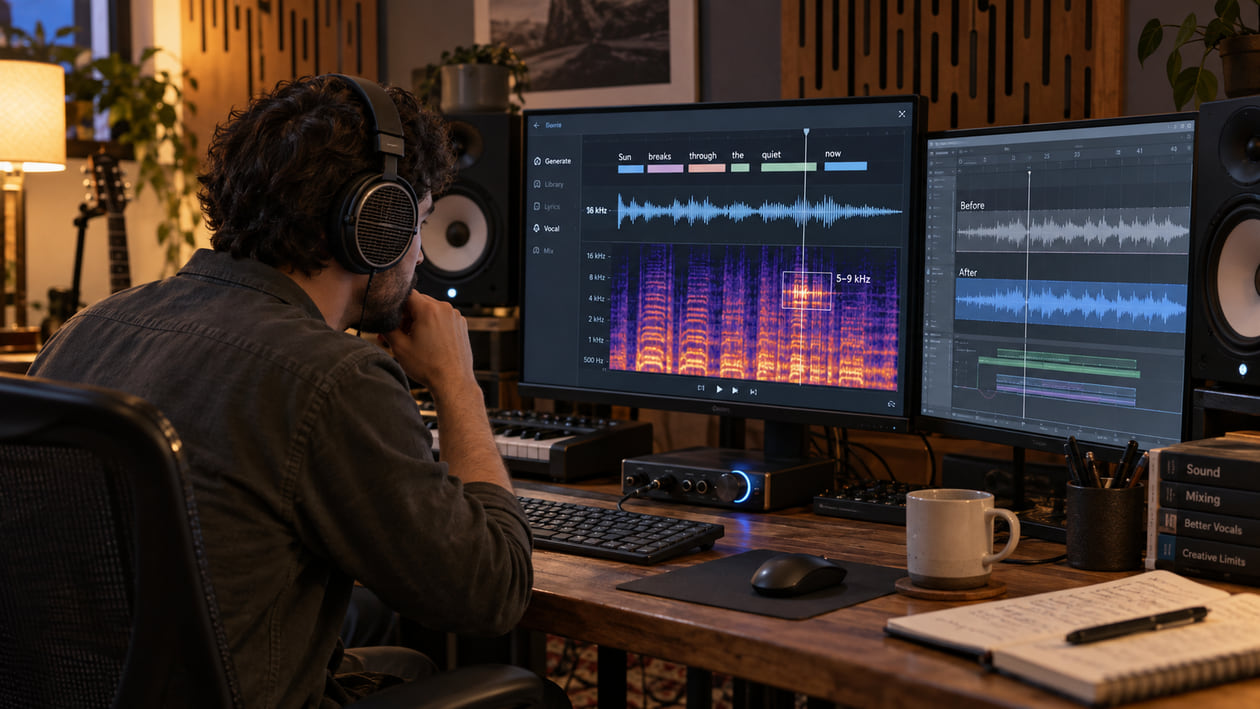
A DiffRhythm 2 song can have clear lyric timing and a convincing structure while one part of the render still distracts you. You may hear a sandy edge on s, sh, or f, a vocal that pushes too hard against the instruments, a bass note that weakens in mono, or an edit that clicks between sections. Treat those as listening notes in your file, not as a universal diagnosis of the model.
Preserve the first render and compare every change at matched loudness. Repair a single click locally, return a wrong lyric or awkward phrase to generation, and use broader cleanup only when the unwanted texture travels through several sources. That order protects the song from a chain of processors added to solve the wrong problem.
Checked September 20, 2026. The official DiffRhythm 2 paper describes a semi-autoregressive framework based on block flow matching, with a music VAE operating at 5 Hz and support for songs up to 210 seconds. The current official inference code defaults to 16 sampling steps, accepts lyrics plus text or reference-audio style conditioning, and writes the result as MP3. The repository does not document WAV, FLAC, or separated-stem output in that default workflow.
The short answer: inspect the render before mastering
Start with three short loops: an exposed vocal phrase, the busiest chorus, and the final reverb decay. Listen quietly first. If a consonant still jumps forward at low volume, mark it. If the chorus feels smaller rather than stronger, compare its peak level and low-end balance with the verse. If the tail turns grainy only after a later export, return to the original file before touching EQ.
DiffRhythm 2 was designed to improve long-form song structure and lyric-to-vocal alignment. Its paper explains how block-wise generation addresses alignment without external timing labels. That is useful context, but it does not make every rough consonant a “diffusion artifact.” The same sound can come from the decoder, MP3 encoding, saturation, a limiter, a bad crossfade, or the playback chain. Hearing it in one render does not prove that DiffRhythm 2 caused it.
I usually begin with the transition into the loudest chorus, then replay one exposed line at the same monitor level. The chorus shows whether a defect survives a dense arrangement; the exposed line reveals whether a vocal edge is part of the performance or an unwanted layer around it.
If you cannot name the symptom, use AI music artifacts explained before choosing a tool. A click, clipped consonant, steady hiss, moving shimmer, and smeared reverb tail need different treatments.
Diagnose the DiffRhythm 2 render you actually have
Do not begin with a preset called “DiffRhythm repair.” Begin with a timestamp and one question you can answer by listening.
- Fricative edge: Loop a word containing
s,sh, orf. Compare the consonant with the vowel that follows. A useful consonant is bright and short; a problem edge may spread into a thin spray that hangs around the voice. - Midrange crowding: Compare the same vocal phrase in a sparse verse and a dense chorus. If the words disappear only when guitars, keys, or synths join, balance or arrangement may be the real issue.
- Low-end instability: Switch between stereo and mono. Bass that loses weight or wanders sideways suggests a phase or width problem. Do not high-pass the mix just because a graph shows energy below 30 Hz.
- Hard transition: Inspect section joins and any manual edits. A click at one boundary calls for a short fade or crossfade, not full-song processing.
- Flattened attack: Compare snare, kick, and plucked sounds before and after any limiter. If their front edge disappears only in your processing chain, reduce that processing.
- Wrong lyric or phoneme timing: Cleanup cannot move a syllable into place. Revise the lyric input, timing, seed, or generation instead.
A spectrogram helps you return to a suspicious moment. It does not identify the model that created the sound, prove a watermark, or decide whether the result is musically wrong. Use the display as a map back to your ears.
Source preflight: model, settings, format, and rights
Record the repository revision, model checkpoint, seed, lyric file, style prompt, reference audio, CFG strength, step count, duration, and interface or fork. The official shell example points to ASLP-lab/DiffRhythm2; the Python entry point defaults to a maximum of 210 seconds and 16 sampling steps. A third-party UI may change those values or add processing after generation.
Keep the untouched output. In the current official code, output is written as MP3. Converting that file to WAV creates a lossless working container, but it does not restore detail removed by the MP3 encode. Use the working WAV to avoid another lossy save during editing, and label it as a conversion rather than an original lossless render.
The inference path can accept a reference WAV, resample it to 24 kHz, select up to ten seconds, mix it to mono, and use it for style conditioning. That reference WAV is an input. It is not evidence that the generated output is WAV, 24 kHz, mono, or separated into stems. Inspect the actual output file rather than carrying input specifications forward.
The official code and model weights are released under Apache 2.0. Follow the notice and disclaimer requirements, but do not treat the software license as blanket permission for every lyric, reference recording, voice, sample, style, or generated result. Preserve a license snapshot and a record of what you supplied.
DiffRhythm 2 fricative shimmer spectrum: 5–9 kHz listening map
DiffRhythm 2 Fricative Shimmer Spectrum: 5–9 kHz Listening Map
| What you see or hear | What to compare | Smallest useful action | Stop when |
|---|---|---|---|
Bright burst on s, sh, or f |
Adjacent vowels and another phrase by the same voice | Automate a narrow dynamic EQ or de-esser only during the consonant | The word stays intelligible and the spray no longer pulls attention |
| Grain continues into the vowel or reverb | Untouched render and later encodes | Return to the earliest clean source; test gentle full-mix cleanup if it moves across sources | The tail sounds smoother without losing air |
| Whole chorus looks bright from 5–9 kHz | Level-matched verse and chorus | Rebalance the bright source or use a broad move only if several sources rise together | The chorus remains open and energetic |
| One isolated vertical spike | Waveform at the exact timestamp | Repair the edit, click, or overload locally | The event disappears without changing nearby transients |
| Graph is busy but playback is comfortable | Quiet blind comparison | Leave it alone | You cannot identify a repeatable audible problem |
The 5–9 kHz range is a practical place to inspect many vocal fricatives, not an official DiffRhythm 2 defect band. Pitch, singer, microphone-like timbre, arrangement, and encoding can move the audible edge. A static cut across this entire range can turn clear lyrics into a dull, lispy vocal.
Compare the same timestamp at matched loudness before and after every move. If the processed version is even slightly louder, it may seem clearer or more exciting for that reason alone.
Restrained manual cleanup in your DAW
Duplicate the working file and turn off final limiters while diagnosing. Add markers at the exposed phrase, busiest chorus, lowest bass note, loudest transient, final tail, and every edit boundary. Make one reversible change at a time.
For a harsh fricative, begin with clip gain or short automation on the syllable. If several similar consonants share the problem, use a de-esser or dynamic EQ that lowers the band only when the edge appears. The harsh-highs guide explains how to control brightness without removing the vocal’s useful air. Stop when consonants sit inside the phrase; do not chase a dark, textureless vocal.
For midrange crowding, decide whether the vocal is actually harsh or merely masked. A narrow cut on the backing track may create space more naturally than turning down the vocal’s presence. If you have only a stereo MP3, broad EQ affects every source in that range, so keep the change small and bypass it often.
For low-end rumble, confirm that the energy is inaudible musically, consumes headroom, or triggers compression. Raise a high-pass filter slowly and compare in mono. Back down as soon as kick weight, bass sustain, or warmth changes. If the bass cancellation comes from stereo phase, filtering alone may make the mix smaller without making it more stable.
For a section click, place the shortest fade that hides the discontinuity. If two sections disagree in tempo, pitch, ambience, or performance, a longer crossfade may only smear the mismatch. Return to the source edit or regenerate that section.
I finish the manual pass by bypassing every processor, then enabling each one separately. This catches the common moment when several individually subtle fixes combine into a smaller, duller mix.
The Sunofix cleanup path for DiffRhythm 2 audio
Manual repair is best for one consonant, one click, one resonance, or one edit. Broader cleanup becomes more useful when a synthetic grain or shifting haze travels through vocals, cymbals, synths, and ambience across several sections. At that point, repeated static cuts can remove more music than artifact.
I built Sunofix for this stage: the song and performance decisions already work, but the finished file still carries an unwanted artificial edge before mastering. Upload a lawful WAV or MP3, keep the pass conservative, and compare the same exposed phrase, chorus, and tail with the original at matched loudness.
Sunofix aims to reduce audible artifact texture while preserving lyrics, melody, rhythm, arrangement, performance, dynamics, and emotion. It does not read DiffRhythm 2’s internal blocks, change phonetic alignment, reconstruct true stems, repair a wrong note, and cannot restore samples already lost to clipping or lossy encoding.
Check the cleaned result on headphones, an ordinary speaker, and mono. If the consonants remain clear, the chorus keeps its lift, and the unwanted grain draws less attention, you have a more stable source for mastering. If the vocal loses breath, drums lose attack, or the bass becomes smaller, return to the original and use a narrower change.
Artifact cleanup should happen before final mastering. Cleanup addresses unwanted source texture. Mastering sets final tonal balance, dynamics, sequencing, and delivery level. A limiter cannot recover detail that an earlier process removed.
Technical and legal boundaries
The official paper reports model-level results for structure, lyric alignment, audio quality, and efficiency. Those results do not promise that every render will be artifact-free or that a particular sound came from block flow matching. Your file can also be affected by decoder behavior, settings, MP3 encoding, manual edits, plugins, resampling, or playback.
Do not describe every bright consonant as diffusion shimmer. First compare the untouched render, another phrase, and any later encode. If the problem appears only after a saturator or limiter, fix that stage. If it exists in one generated phrase but not another, regeneration may preserve more music than aggressive repair.
Sunofix cannot correct lyrics, melody, timing, pronunciation, arrangement, or an unsuitable performance. It does not remove provenance marks, bypass detectors, certify ownership, or make an unauthorized reference lawful. Cleanup does not grant legal clearance or guarantee distributor approval.
Keep the original render, lyrics, prompt, reference audio, settings, model revision, license snapshot, working copy, cleaned source, and final master as separate files. That record makes the technical comparison repeatable and preserves a clearer rights trail.
Not every rough texture is damage. Breath, distortion, aggressive consonants, noisy synths, and unstable ambience can be deliberate parts of a performance. Stop when the distraction recedes and the musical identity remains.
DiffRhythm 2 audio release checklist
- Preserve the original render before conversion, editing, cleanup, or mastering.
- Record the exact model, code revision, seed, lyrics, prompt, reference audio, CFG strength, steps, duration, and interface.
- Inspect the real output file for codec, sample rate, channels, clipping, and prior lossy encoding.
- Mark an exposed vocal phrase, busiest chorus, lowest bass note, loudest transient, final tail, and every edit.
- Name the symptom you hear before interpreting a waveform or spectrogram.
- Repair one click, consonant, or edit locally before processing the whole mix.
- Use dynamic EQ or de-essing only when the edge appears and stop before the vocal loses air.
- Check stereo and mono before changing low-end width, phase, or filtering.
- Return wrong lyrics, timing, notes, or arrangement to generation or editing.
- Test broader cleanup only when unwanted texture moves through several sources.
- Use level-matched before-and-after playback on headphones, a normal speaker, and mono.
- Stop when clarity, punch, breath, bass weight, or emotion starts to shrink.
- Master only after cleanup decisions are stable, then archive each stage separately.
If the vocal stays intelligible, the chorus keeps its energy, the bass survives mono, and the unwanted edge no longer pulls attention, the source is ready for the next stage. If the result sounds smoother but smaller, go back to the untouched render. Quality control is not a contest to make the spectrogram look empty. It is a way to remove distractions without sanding away the song.
Continue listening
Related reading
FAQ
DiffRhythm 2 Audio Quality: Clean Vocal Shimmer and Balance the Mix FAQ
What causes digital artifacts in DiffRhythm 2 audio?
A rough consonant, smeared tail, click, or unstable low end can come from generation, decoding, a hard edit, MP3 encoding, later processing, or playback. DiffRhythm 2 uses block flow matching and a neural audio decoder, but the architecture alone cannot identify the cause in your file. Compare the untouched render at the same timestamp before choosing a repair.
Does DiffRhythm 2 export WAV, FLAC, or separate stems?
The current official inference code writes the generated song as MP3. It accepts a reference WAV for style conditioning, but that is an input, not proof of WAV output. The official repository does not document WAV, FLAC, or separated-stem output in the default workflow, so verify the exact interface or fork you used.
Can Sunofix clean DiffRhythm 2 vocal shimmer?
Sunofix can process a lawful WAV or MP3 when a distracting synthetic texture moves through a finished mix. It cannot repair wrong lyrics, change phonetic timing, rewrite the arrangement, create true stems, or restore samples already lost to clipping or lossy encoding.
Can I use DiffRhythm 2 output commercially?
The official code and weights are released under Apache 2.0, subject to its notices and disclaimer. That does not automatically clear lyrics, reference audio, voices, samples, styles, or every output. Review the current license and the rights in every input before release.