

AI Music Generators
How to Improve Suno Audio Quality Without Changing the Song
A practical way to check a Suno export, reduce audible artifacts, compare it fairly, and leave mastering for the right stage.
Suno Artifact Remover
Reduce metallic shimmer, robotic vocals, harsh highs, hiss, digital wobble, and smeared reverb before those defects get pushed forward by mastering.
The short answer: A Suno artifact remover reduces synthetic defects already baked into an AI music export. Sunofix cleans the finished audio while preserving the melody, lyrics, arrangement, and original song idea.
Supported exports
Suno, Udio, BandLab, Riffusion, Mureka, and Treblo can all leave a track with an obvious synthetic edge. Sunofix keeps Suno as the main path, while staying useful for broader AI music cleanup.
No DAW
Open the app, choose the problem you hear, and compare the processed result.
No plugins
Use Sunofix before your final mastering chain instead of guessing through presets.
No AI training on uploads
Your track is handled for cleanup, not used to train a public model.
Preserves the song
Sunofix is built to preserve the melody, lyrics, arrangement, and original song idea.
Evidence rule
A louder result usually feels better even when the artifact is still there. Compare both versions at a similar perceived volume, then listen for a softer vocal edge, calmer cymbals, cleaner reverb tails, and enough air left in the mix.
Before / after proof
Compare the same passage before and after cleanup. Start with the raw AI vocal, then play the processed version and listen for a softer synthetic edge without a different song underneath.
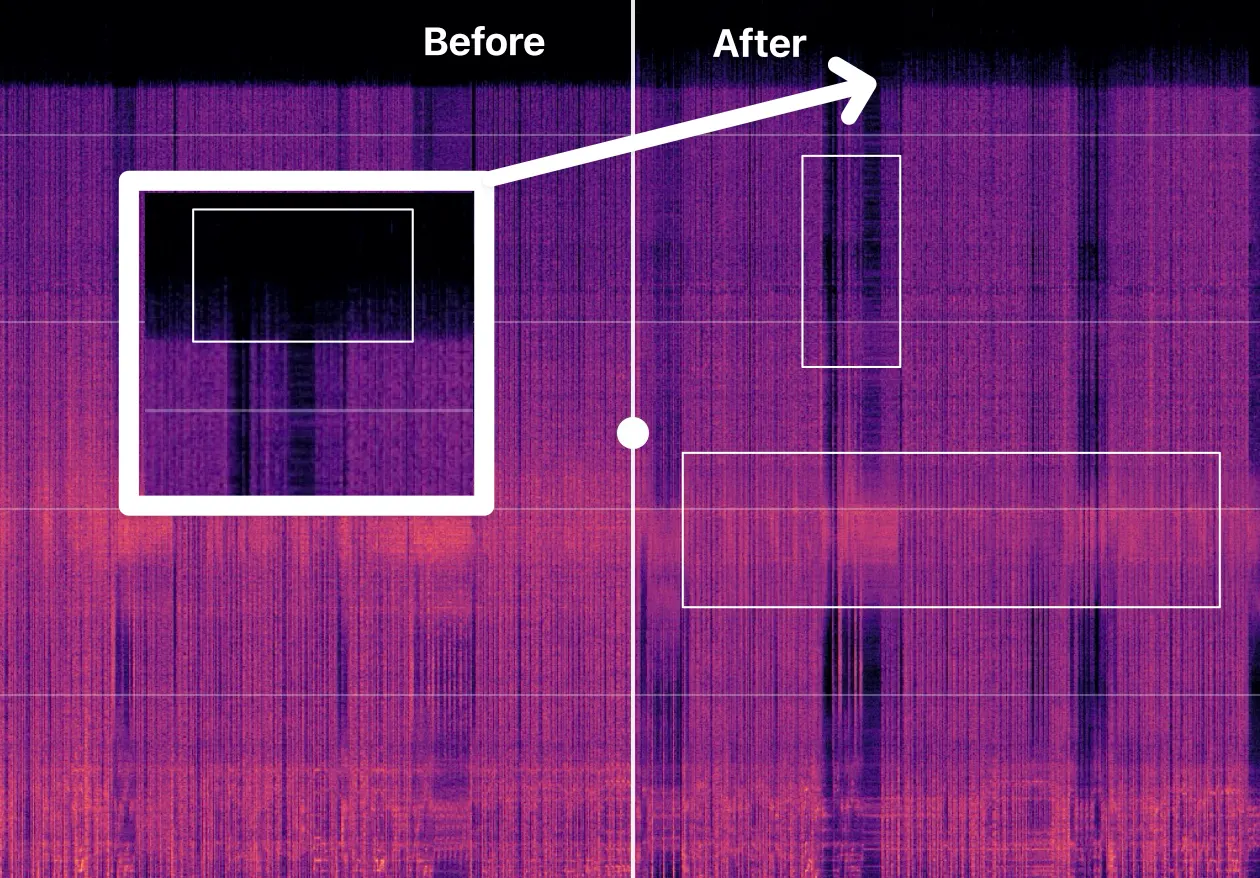
The song stays the same; the distracting synthetic texture is reduced. Use headphones, keep the playback level comfortable, and decide whether the processed version sounds cleaner rather than simply louder.
Cleanup modes
Sunofix listens for metallic shimmer, robotic vocals, harsh highs, hiss, wobble, and smeared reverb. These generated textures move through the mix differently from steady room noise or a simple tonal imbalance.
Artifact cleanup
Reduces unstable synthetic texture such as shimmer, vocal plasticity, wobble, and smeared tails before the final polish.
Denoise
Works best on steady background noise. Aggressive denoise can leave watery edges when the problem is woven into the music.
Mastering
Adjusts loudness, balance, and final presentation. It can make an untreated metallic layer more obvious.
Metallic shimmer
A glassy or shiny layer around vocals, cymbals, bright synths, and reverb tails.
Robotic vocals
Plastic tone, hard consonants, or a synthetic edge that makes a strong vocal feel detached.
Harsh highs
Piercing hats, brittle upper mids, splashy cymbals, and fast listening fatigue.
Hiss
A steady or woven high-frequency layer that becomes more obvious when the track is made louder.
Digital wobble
Unstable pitch or texture that ripples around sustained vocals, notes, and ambience.
Smeared reverb
Vocal and instrument tails that blur together instead of fading with a clean shape.
Workflow
A normal mastering chain can make a track louder, wider, and brighter, but it can also push metallic shimmer, robotic vocal texture, and brittle AI highs forward. Clean the source first, then master the cleaner version.
Upload your track in the app
Pick the problems you hear
Review before and after diagnostics
Download the cleaner WAV
Pricing
New accounts get one free credit. After that, credits are sold in one-time packs of five credits. The exact total and currency are shown at checkout.
5 credits
one-time pack
One-time purchase. No subscription or auto-renewal. By continuing, you agree to theTerms andRefund Policy.
Free browser tool
Generate a detailed 1920 × 840 spectrogram from an MP3 or WAV. The file stays inside your browser and disappears when the tab closes.
Open the free spectrogram generatorEditorial signal
The Sunofix blog connects generator-specific symptoms, cleanup decisions, and mastering workflow in one practical library.
A practical way to check a Suno export, reduce audible artifacts, compare it fairly, and leave mastering for the right stage.

Learn how to tell metallic shimmer from hiss in a Suno track, test the problem on a short loop, and clean it without flattening the whole mix.
Reduce synthetic texture in a Udio export before mastering.
Check and clean common AI-audio defects in a Mureka track.
Prepare a Treblo export for listening, review, or a later mastering pass.
Foundational guides
Open the guide for glassy highs, hiss, shimmer, and cleanup before mastering.
Open the guide for robotic vocals, plastic tone, sibilance, and sticky reverb.
See why source repair should happen before the final loudness pass.
Use the practical guide to name the problem, avoid dull fixes, and compare cleanup.
Focus on piercing hats, brittle upper mids, splashy cymbals, and headphone fatigue.
Prepare a cleaner source for mastering and release QC without pretending approval is automatic.
FAQ
Metallic shimmer usually comes from unstable high-frequency content in generated audio. It can sound like glassy overtones, splashy hats, high-frequency hiss, or spectral smearing around vocals and reverb.
They can often sound more natural when plastic tone, hard sibilance, digital wobble, and sticky reverb are reduced while keeping the original melody and lyric intact.
Start with a cleaner source, then master the cleaner version. Sunofix can make a track closer to release-ready, but it does not guarantee distributor approval.
EQ changes broad frequency bands, denoise tools target steady noise, and mastering changes loudness and balance. Sunofix focuses on AI-specific texture problems before final polish.
App handoff
Open the Sunofix app, choose the cleanup mode, and start with the problem you can hear.
Clean my track